Bulk Schedule WordPress Posts: 100 at Once
Need to publish a batch of posts gradually instead of all at once? WordPress can schedule a single post from the editor, but it has no way to spread a group of posts across a calendar. Doing 40 posts by hand means opening 40 editors and setting 40 dates.
Short answer: to bulk schedule WordPress posts you need either WP-CLI scripting or a plugin that assigns dates across a batch. DocxToWP Pro does it during import. Set a start date and an interval, and every one of up to 100 documents gets its own publish date, with weekends excluded and any individual date editable.
Why publishing everything at once is a problem
Bulk importing content is only half the job. Dropping 100 posts live in the same minute causes real damage:
- Your RSS feed and email digest fire 100 notifications. Subscribers unsubscribe.
- Archive and category pages become useless, every post shares a timestamp, so there is no meaningful order.
- It looks automated, because it is. A hundred posts appearing simultaneously is a pattern associated with scraped and spun content.
- You burn your whole content pipeline in one day and have nothing scheduled for next week.
A drip schedule turns the same import into a content calendar.
Three ways to bulk schedule posts
| Method | Cost | Who it's for |
|---|---|---|
| Drip publishing on import | $39 one-time | Anyone importing content |
WP-CLI (wp post update) | Free | Developers with SSH |
| Quick Edit, one post at a time | Free | Fewer than ~10 posts |
Quick Edit
From Posts → All Posts, hover a row and click Quick Edit. You can change the date there without opening the full editor. Genuinely faster than the editor, and completely impractical past about ten posts. WordPress's bulk edit dropdown deliberately does not include the date field.
WP-CLI
wp post update 123 --post_status=future --post_date="2026-08-20 09:00:00"
Loop that with incrementing dates and you have a scheduler. Free, exact, and requires SSH plus a script that gets the timezone right.
On import
If the content is arriving as documents anyway, scheduling during import means you never touch the posts list at all.
How to bulk schedule posts with drip publishing
Step 1. Add your documents
Drag up to 100 .docx files into DocxToWP → Bulk Import. This is the same flow as a normal bulk import. Drip is one extra panel.
Step 2. Turn on drip publishing
Tick Schedule these documents one after another. The batch Status control locks, because every post is now scheduled rather than sharing one status.
Step 3. Pick the first date and the interval
First post goes live   [ 11/08/2026  09:00 ]
Then one every         [ 1 ]  [ days ▾ ]
Only on these days     [Mon][Tue][Wed][Thu][Fri] Sat  Sun
Intervals run from hours to months. Monthly spacing is calendar arithmetic rather than a fixed number of days, so a schedule starting on the 31st goes 31 Jan → 28 Feb → 31 Mar → 30 Apr instead of overflowing into the following month.
Step 4. Review and adjust
Every row in the review table shows its computed date:
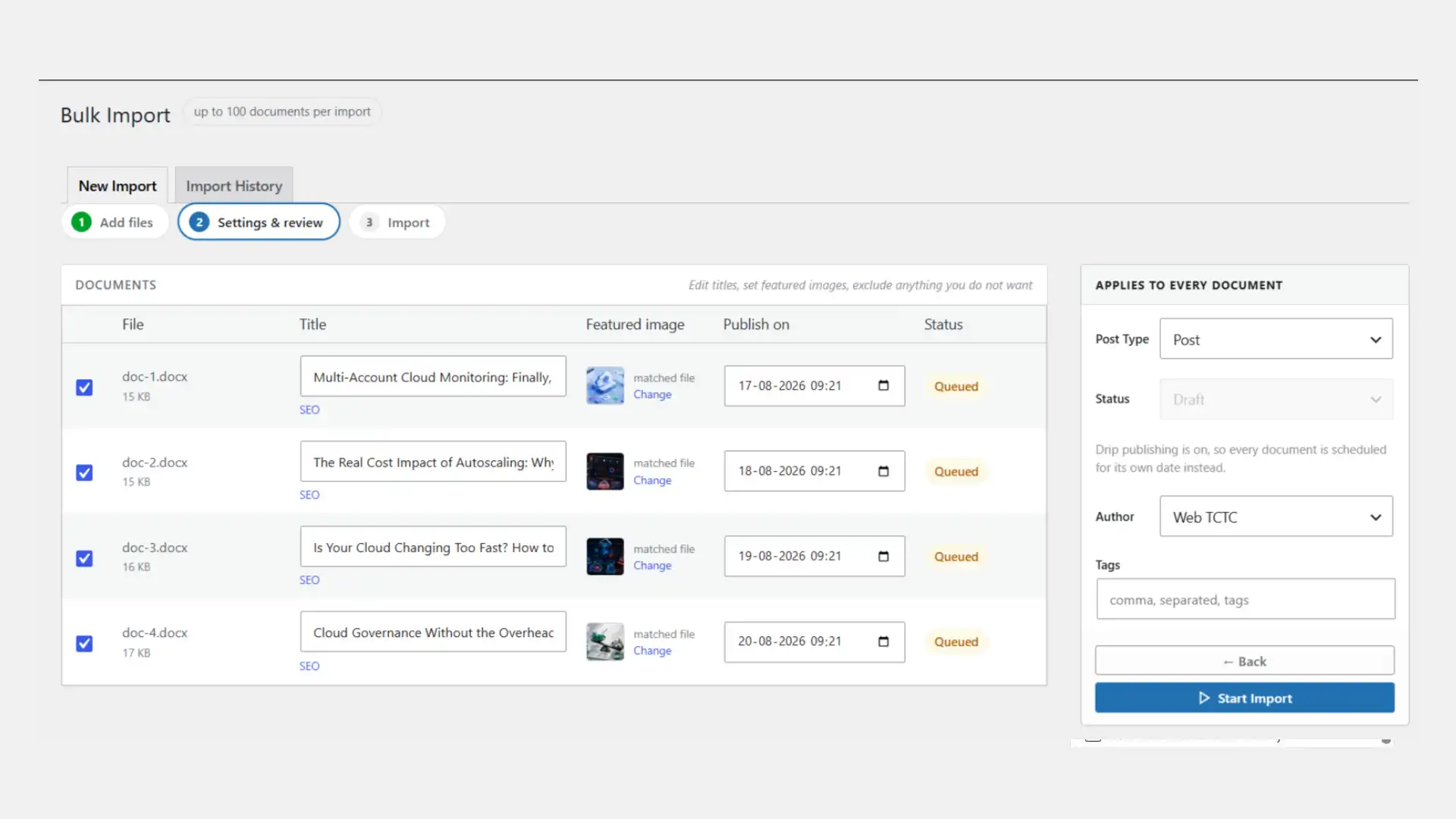
The Status control on the right is greyed out on purpose, with the reason stated underneath: once drip is on, each document carries its own date, so a single batch-wide status no longer applies.
Change any one of them and it sticks. Two rules make this behave the way you would expect:
- A manual date is never overwritten when the schedule regenerates.
- A manual date does not consume a slot. Move doc-2 to September and doc-3 takes Tuesday, not Wednesday. Pulling a post out of the sequence closes the gap rather than leaving a hole in your calendar.
Step 5. Import
Each document is created with post_status = future and its own publish date. WordPress publishes them on schedule from there; nothing has to stay open.
Build a content calendar from a folder of documents
Drip publishing is in DocxToWP Pro. Import up to 100 Word documents and schedule them across days, weeks or months in one pass.
See PricingTimezones. The part that quietly breaks
Every date you pick is interpreted in your WordPress site timezone, set in Settings → General.
This matters more than it sounds. WordPress stores two values per post: post_date in site-local time and post_date_gmt in UTC, and it publishes based on the GMT one. Tools that fill those in carelessly publish at the wrong hour. A post set for 2:30 PM on an IST site going live at 8:00 PM, because the local value was written into the UTC column.
If you have ever had scheduled posts appear at odd times, that mismatch is usually why. Worth checking against your own site: schedule one post a few minutes out and confirm it lands when you expect.
Good intervals to start with
| Content type | Interval | Days |
|---|---|---|
| Blog backlog | 1 day | Mon–Fri |
| Knowledge base | 4 hours | Mon–Fri |
| Long-form guides | 1 week | Tue |
| Newsletter archive | 1 month | Mon–Fri |
Weekdays only is the default because most audiences are less active at weekends. If you publish for a consumer audience, turning Saturday and Sunday back on is one click.
Frequently asked questions
Can I schedule multiple WordPress posts at once?
Yes. WordPress core schedules posts one at a time from the editor and cannot assign dates across a group. DocxToWP Pro schedules up to 100 documents in a single import, giving each its own publish date.
How do I bulk schedule posts in WordPress without a plugin?
There is no built-in way. Quick Edit changes one post's date at a time, and WP-CLI can set dates via wp post update in a loop if you are comfortable scripting. Past a handful of posts, a plugin is the practical option.
Can I publish posts every day automatically?
Yes. Set the interval to one day and every imported document is scheduled a day apart. Hours, weeks and months work the same way.
Can I skip weekends when scheduling posts?
Yes. Weekdays are selected individually and weekends are off by default, so a daily schedule runs Monday to Friday and continues into the next week rather than publishing on Saturday.
Can I change the date of one post in the batch?
Yes. Every row has its own date field, a manual date is never overwritten by regeneration, and it does not consume a slot.
What timezone are scheduled posts published in?
Your WordPress site timezone, from Settings → General. The date you pick is the local time the post goes live.
What happens if a scheduled date has already passed?
The post publishes immediately rather than failing, and the report notes it on that row.
Does drip publishing work with custom post types?
Yes. Scheduling applies to whichever post type the batch targets, including Pages, WooCommerce products and any custom post type on your site.
Related reading
- Bulk DOCX to WordPress: import 100 Word documents. The import half of this workflow
- How to import a Word document into WordPress. Four methods, for single files
- Import DOCX without losing formatting. Why headings and tables break
- See the 1.2 release notes. Everything in Smart Drip Publishing
Related Articles
How to Import Joplin Notes to WordPress
Joplin to WordPress: export your notes as Markdown and import them as posts with headings, lists, tables, code and images intact. One note free, a whole notebook with Pro.
How to Import a Notion Export into WordPress
Notion to WordPress via Markdown export: get pages into WordPress as posts with headings, lists, tables and images intact, one page free or a whole workspace with Pro.
How to Publish Obsidian Notes to WordPress
Obsidian to WordPress: your vault is already Markdown. Import notes as posts with headings, lists, tables and code intact, and get attachments into the right posts in bulk.
Import your first Word document in under 60 seconds
Start free. Import a Word document without copy-pasting or rebuilding its formatting. No account, no credit card. Straight from WordPress.org.