Bulk DOCX to WordPress: 100 Files in Minutes
Need to import dozens (or hundreds) of Microsoft Word .docx documents into WordPress? Copying and pasting each one wastes hours and routinely breaks formatting, images and SEO metadata.
Short answer: WordPress cannot bulk import Word documents on its own. Tools → Import only reads WXR/XML, not .docx. To import multiple DOCX files into WordPress you need a plugin that parses .docx natively. DocxToWP Pro handles up to 100 documents per run while preserving formatting, featured images, categories and SEO fields, with a review step before anything is created and a one-click undo afterwards.
This guide shows the full workflow, screen by screen.
Why bulk DOCX import matters
If you write in Word and publish in WordPress, the gap between the two is where your time goes. At one document a week that gap is an annoyance. At fifty it is a project.
- Copy-paste is slow. Fifteen to thirty minutes of cleanup per post is normal, and it is the same fifteen minutes every time.
- Formatting breaks. Word stores a heading two different ways, as a real
Heading 2style, or as a normal paragraph with 16pt bold applied directly. They look identical in Word. Only the first survives a paste as an actual<h2>. - Images disappear. Pasted images either fail entirely or arrive as Base64 strings embedded in the post body. They never reach your Media Library, they bloat the database, and they cannot be reused or optimised.
- SEO metadata is manual. Every post needs a meta title and description written by hand after the fact, so in practice most of them never get one.
- It does not scale. Two hundred knowledge base articles at twenty minutes each is over sixty hours of work that produces nothing new.
Bulk import collapses all of that into one pass.
Who needs bulk Word document import?
- Bloggers with a backlog of drafts written in Word or exported from Google Docs
- Marketing agencies onboarding client content, often dozens of articles at a time
- Documentation teams publishing SOPs, manuals and internal guides
- Universities moving course material and research onto a public site
- Publishers with archives that never made it off a shared drive
- Technical writers whose source of truth is Word, not the block editor
- Content migration projects moving from a legacy CMS, an intranet, or nothing at all
The common thread is volume plus formatting that actually matters.
How bulk import works
Step 1. Add your DOCX files
Open DocxToWP → Bulk Import and drag your files into the drop zone. Up to 100 documents per run, 10 MB each by default.

Drop images in at the same time. An image named after its document (doc-1.webp beside doc-1.docx) becomes that post's featured image automatically. Matching ignores case and separators, so Chapter 01.docx still pairs with chapter-01.jpg.
Files upload in the background while you configure everything else, so the transfer is usually finished by the time you have picked your settings.
Step 2. Review before publishing
This is the step that makes bulk import safe to use. Every document is listed with the title read from its first Heading 1, its matched featured image, and a checkbox to exclude it.
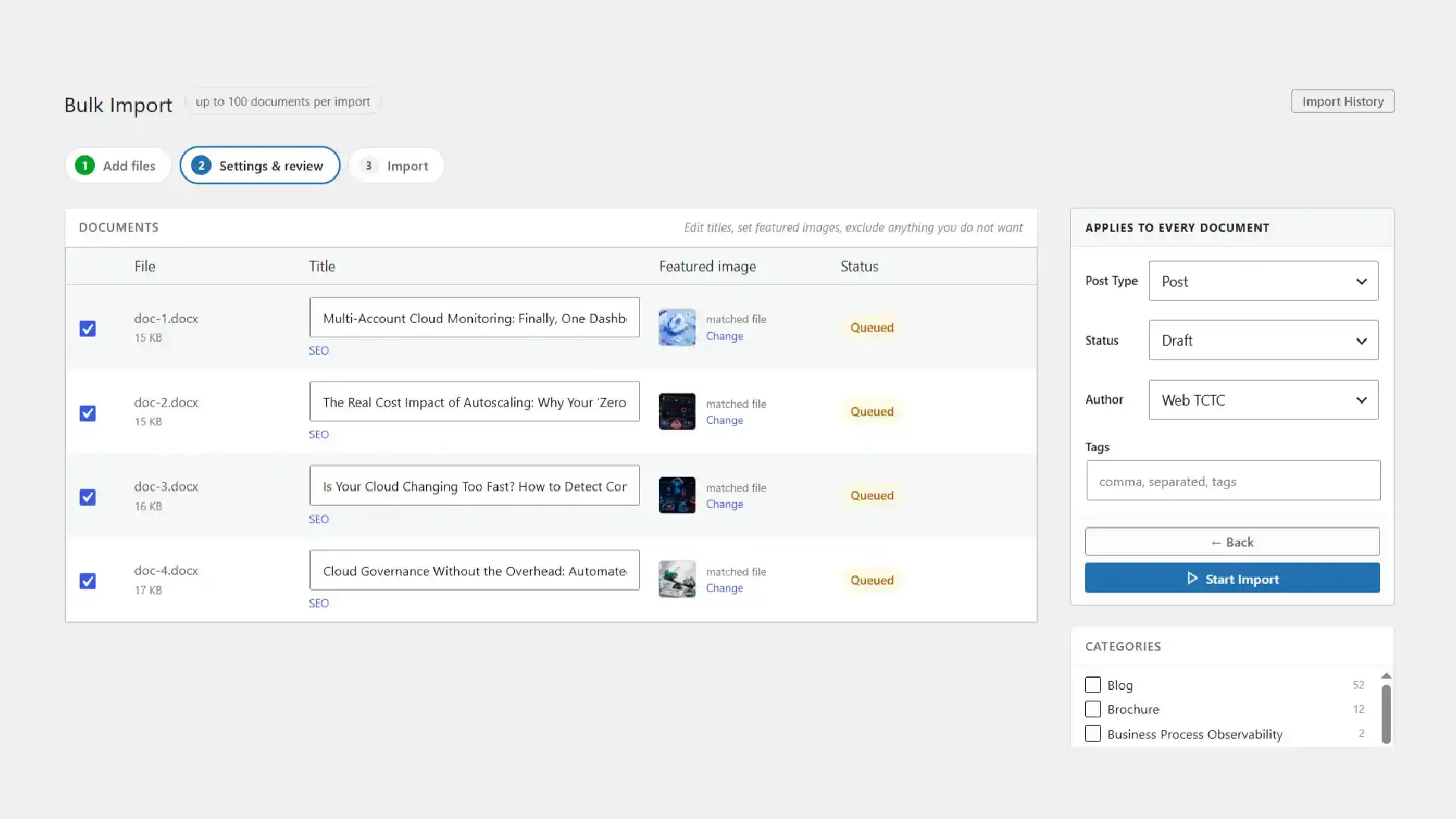
On the right, the settings that apply to the whole batch: post type, status, author, tags and categories. Import as Draft the first time. It costs nothing and means a bad batch never reaches your live site.
Fix titles here rather than in a hundred separate post editors afterwards.
Step 3. Set SEO details
Each row has an SEO link that opens the per-document SEO panel.
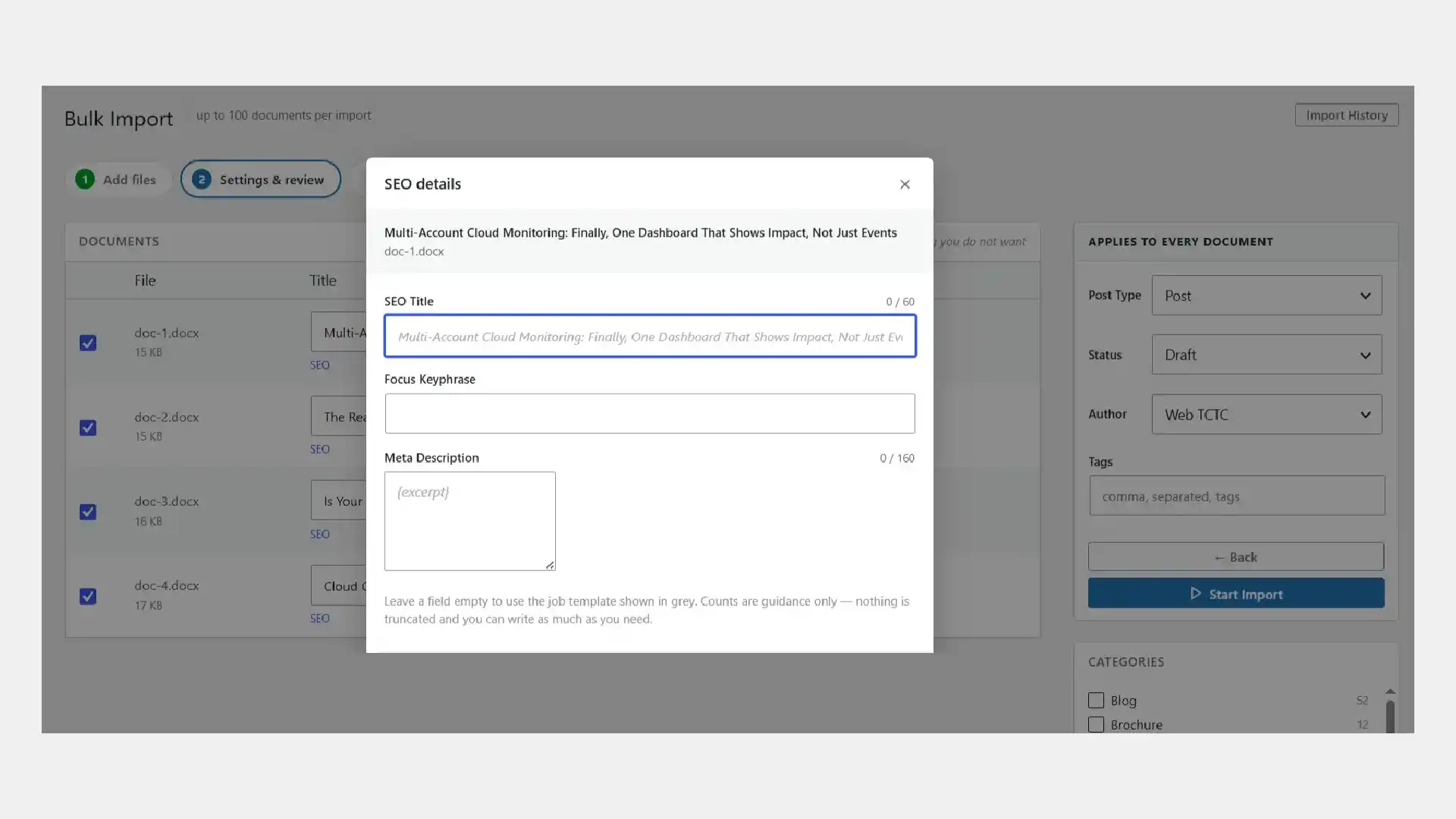
Leave a field empty and it falls back to the job-wide template, shown in grey. Templates accept {title}, {sitename}, {excerpt}, {filename}, {category} and {date}, so a meta description template of {excerpt} gives every post a description drawn from its own opening text.
The character counts are guidance only. Nothing is truncated and nothing is blocked. Search engines shorten long values for display, they do not reject them.
Step 4. Schedule the batch, or publish it all at once
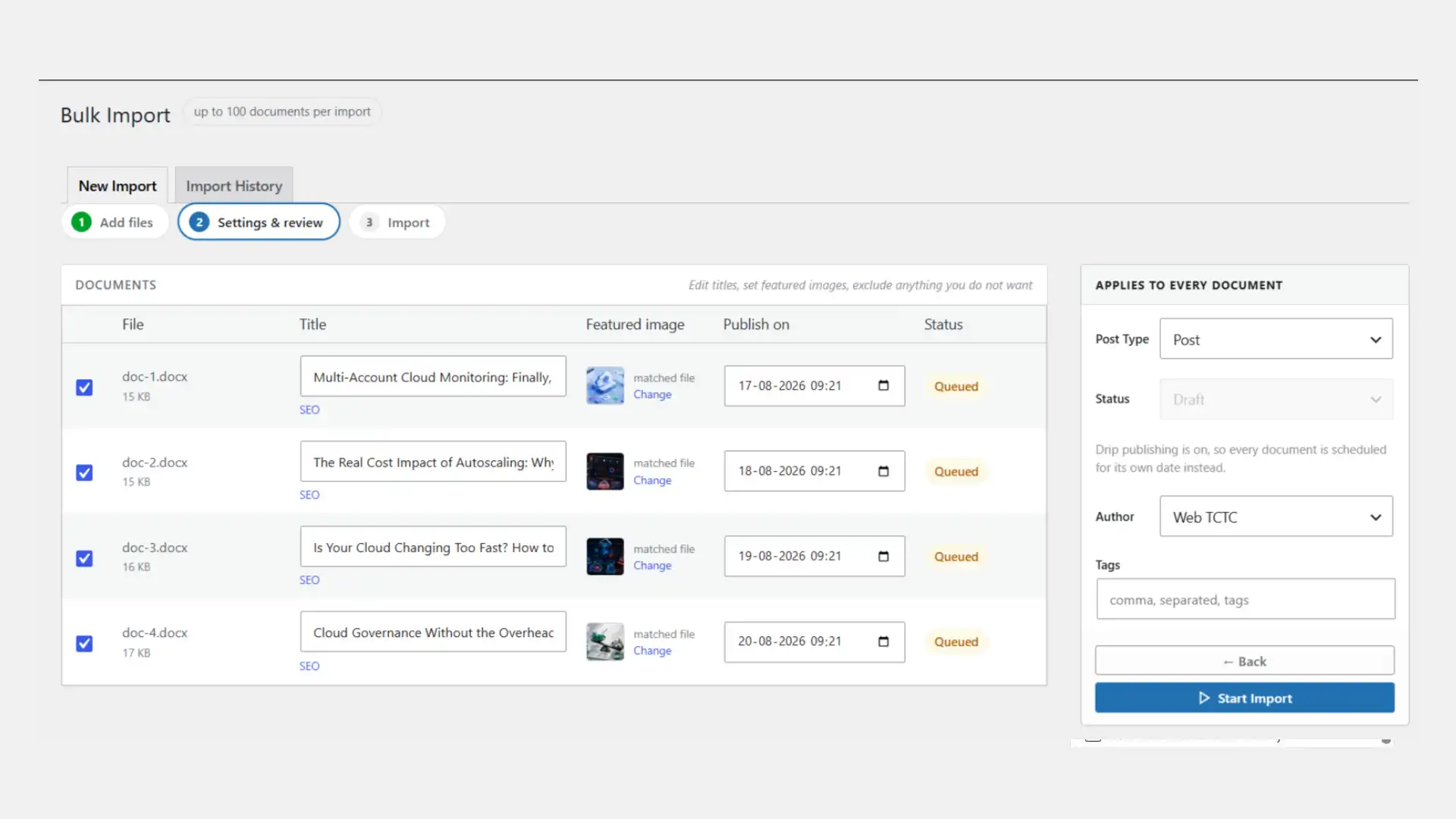
Optional, but worth knowing about before you press the button. Switch on drip publishing and the Status dropdown hands over to a per-document Publish on column: pick a start date and an interval, and every document is scheduled its own slot instead of forty posts landing on the same minute.
Restrict it to weekdays if you want, and edit any individual date inline. The schedule is a suggestion, not a lock. Skip this and everything publishes together as normal.
Step 5. Run the import
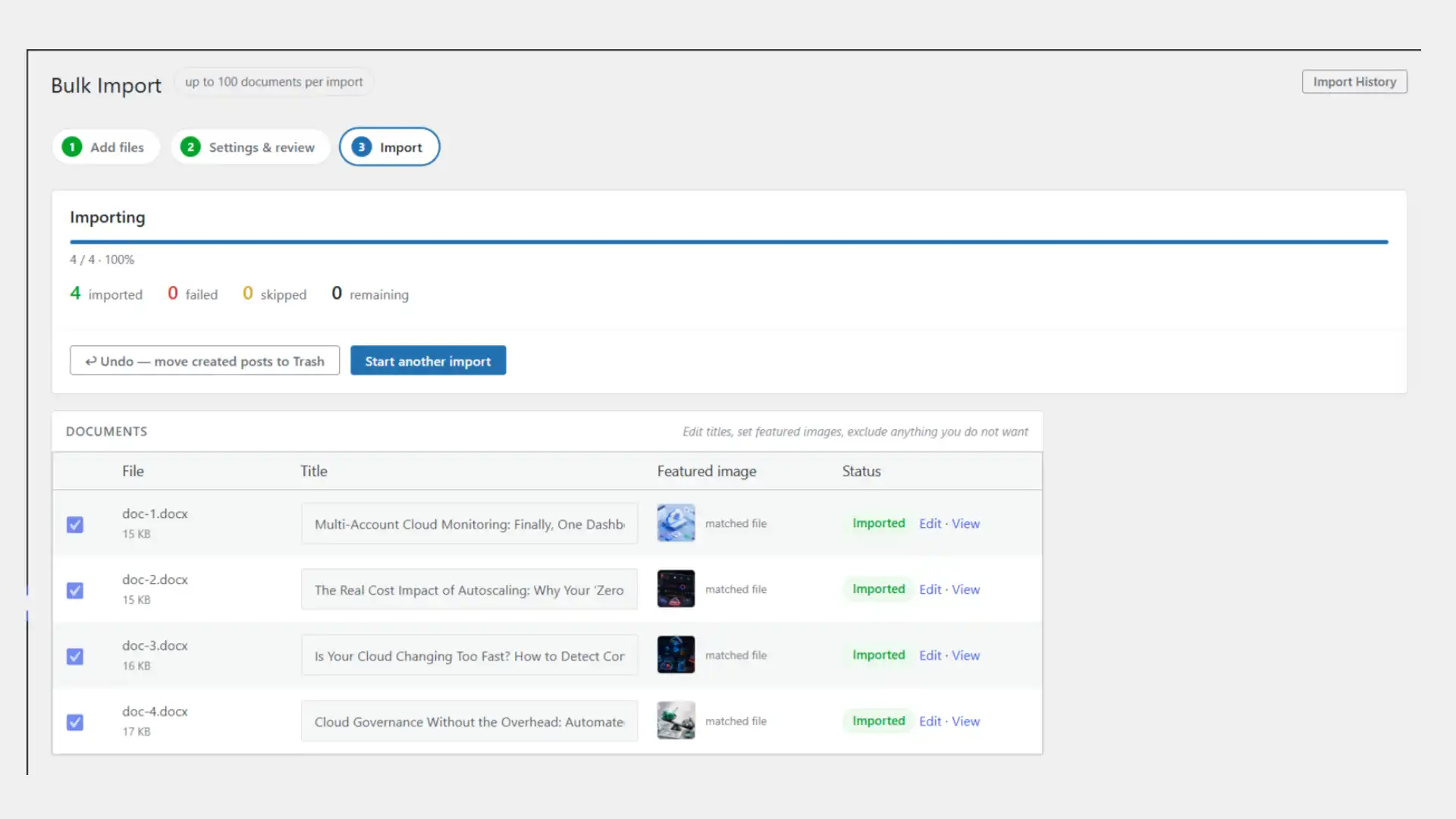
Progress runs per file with a live count of imported, failed, skipped and remaining. Each finished row gets Edit and View links straight to the post.
If a document fails, it fails alone. The error appears against that filename, the queue keeps moving, and Retry failed re-queues only the failures. Close the tab mid-run and reopening the page offers to resume. Documents that already imported are skipped rather than duplicated.
Step 6. Check history, or undo
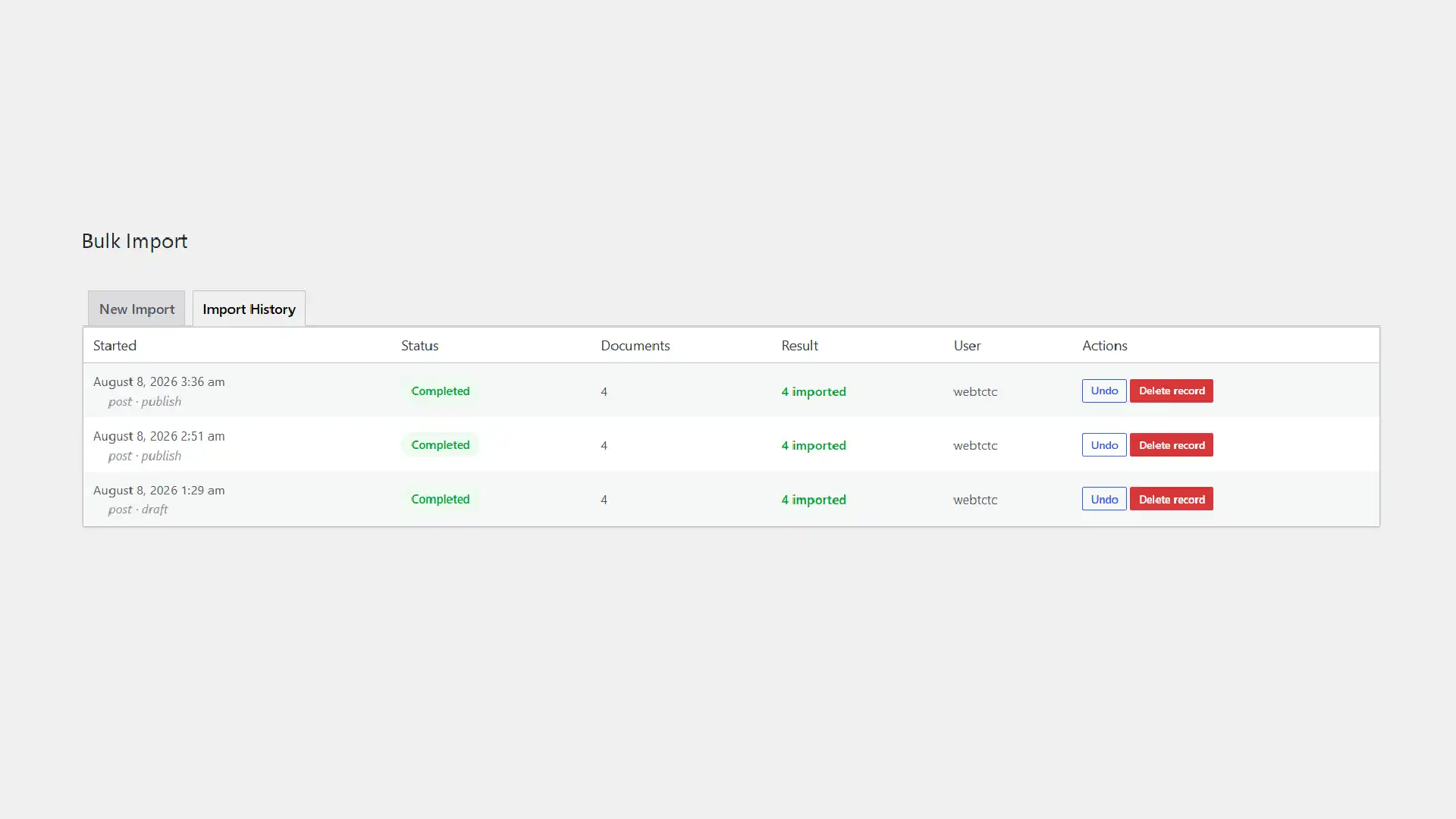
Every run is recorded with its date, post type, status and result. Undo moves exactly the posts that import created to the Trash. It works from recorded post IDs, never a title or date query, so nothing else on your site is touched.
Try it on your own documents free
The free version on WordPress.org imports one document at a time with no cap, so you can test conversion quality on as many of your own files as you like before paying anything.
Download Free from WordPress.orgBulk import vs manual copy-paste
| Manual copy-paste | DocxToWP Pro | |
|---|---|---|
| Import 100 DOCX files | ❌ One at a time | ✅ One batch |
| Preserve headings and tables | ⚠️ Partial. Styles flatten | ✅ Semantic HTML |
| Extract embedded images | ❌ Base64 or broken | ✅ Into the Media Library |
| Featured images | ❌ Manual per post | ✅ Matched by filename |
| SEO title, description, keyphrase | ❌ Manual per post | ✅ Templated across the batch |
| Categories and tags | ❌ Manual per post | ✅ Set once for the batch |
| Custom post types | ⚠️ Manual | ✅ Any public type |
| Review before publishing | ❌ | ✅ Full review table |
| Undo the whole import | ❌ | ✅ One click |
| Time for 100 documents | 25–50 hours | 5–15 minutes |
The time row is the one that matters. Twenty minutes per document is a conservative estimate once you include image re-uploads, category assignment and SEO fields.
A concrete example
Say you are migrating 85 blog posts written in Word onto a new WordPress site.
Manually, that is: open each document, copy the body, paste into the editor, fix the headings that flattened into bold paragraphs, re-upload every image by hand, set a featured image, pick a category, add tags, then write a meta title and description. Call it twenty minutes if nothing goes wrong. That is roughly 28 hours. Most of a working week, producing nothing new.
With bulk import: drop all 85 .docx files and their images into the drop zone, set post type to Post and status to Draft, pick the category, set the meta description template to {excerpt}, and start. Scan the review table for titles that came out wrong and fix those inline. The import runs in about ten minutes. You spend the rest of the afternoon reading the drafts rather than assembling them, and if the batch is wrong, one click puts all 85 in the Trash.
Why not copy and paste?
It is worth understanding the mechanism, because it explains which problems are fixable and which are not.
When you copy from Word you are not copying text. You are copying Word's own HTML representation, built for round-tripping inside Office rather than for the web. It leans on inline style attributes and generic <span> wrappers instead of semantic tags.
That produces four predictable failures:
- Messy HTML. Your post body fills with
<span style="font-size:16pt">andmso-properties that no theme styles correctly. - Broken structure. A pasted pseudo-heading is a bold paragraph. The page still looks structured while carrying none of the structure a search engine or screen reader relies on.
- Missing images. They fail, or they arrive as Base64 and never reach your Media Library.
- No metadata. Categories, tags, excerpt, featured image and SEO fields are all still ahead of you.
A parser reads the underlying XML instead, so a Heading 2 style becomes a real <h2> and word/media/image1.png becomes a genuine attachment.
If you have SSH access and this is a genuine one-off migration of thousands of files, WP-CLI plus Pandoc in a loop is free and no plugin will beat it. Plugins win on repeat work, on reviewing content before it publishes, and on not needing a developer.
Schedule 100 WordPress posts automatically
Bulk importing content is only half the job. Publishing 100 posts in the same minute is not a content strategy. It looks like a dump, and readers, feeds and search engines all treat it that way.
Drip publishing lets you import an entire content library today and release it gradually. The workflow is the same as above with one extra step:
- Upload your DOCX files
- Choose the first publish date and time
- Select an interval, every X hours, days, weeks or months
- Optionally restrict it to certain weekdays
- Import
Every document is assigned its own publish date automatically, shown in the review table before anything is created. Change any single date by hand and it sticks, and because a manually dated document does not consume a slot, the rest of the sequence closes up behind it rather than leaving a gap.
So 40 documents imported on a Monday, one per weekday, become a content calendar that runs to the end of the following month. All dates use your WordPress site timezone.
Import as Draft the first time even with drip enabled. Once you have checked a few posts, switching them to Scheduled is a bulk action in the WordPress posts list, and a wrong batch is one Undo away instead of a live publishing queue.
This is the part that matters for bloggers, marketing teams, agencies and publishers running an editorial calendar: the import stops being a one-off migration and becomes the way content gets scheduled.
Common bulk import use cases
Bulk import earns its place whenever the count gets past what you would do by hand:
- Migrating an old Microsoft Word blog. A backlog of drafts that never got published
- Publishing product documentation into a custom post type rather than a pile of blog posts
- Knowledge base articles moving off a shared drive or an intranet
- Course content migration for universities and training providers
- Government and compliance reports where the formatting is legally part of the document
- Technical manuals with heavy table and heading structure
- Internal SOP documentation that lives in Word and needs a searchable home
- Agency client onboarding. A whole content library in one pass
For a migration, run it as Draft, spot-check twenty posts, then bulk-publish from the WordPress posts list. If the batch is wrong, Undo puts it back before anyone sees it.
Related reading
- How to import a Word document into WordPress. Four methods compared, for single files
- Import DOCX without losing formatting. Why headings and tables break, and how to stop it
- Importing Word documents with images. Featured images and inline media
- Best DOCX to WordPress plugins in 2026. An honest comparison
- Stop copy-pasting Word docs into WordPress. What the paste actually does to your HTML
Frequently asked questions
Can I import multiple DOCX files into WordPress?
Yes. DocxToWP Pro imports up to 100 .docx files in a single batch. WordPress itself cannot. The built-in importer only reads WXR/XML files, not Word documents.
Does bulk import preserve Word formatting?
Yes. Headings H1 to H6, bold, italic, underline, ordered and unordered lists, tables and hyperlinks are converted to semantic HTML rather than inline styles.
Can it import images from inside the Word documents?
Yes. Every embedded image is extracted and uploaded to the Media Library as a real attachment, so it generates thumbnails and can be reused. Images are never left as Base64 strings in the post body.
Does bulk import support Rank Math and Yoast SEO?
Yes. SEO title, meta description and focus keyphrase are written for both, and can be filled across the whole batch using templates.
Does it work with custom post types?
Yes. Any public post type on your site can be the target, including WooCommerce products, documentation and knowledge base types.
Can I undo a bulk import?
Yes. Each import records the IDs of the posts it created, and Undo moves exactly those to the Trash.
Can I import 100 Word documents at once?
Yes. 100 per run is the default maximum with a 10 MB per-file limit. Both are configurable, and you can run as many batches as you need.
What happens if one document fails during a bulk import?
It fails its own row only. The error shows against that filename, the rest of the batch continues, and Retry failed re-queues just the failures.
Next steps
- See everything Pro includes on the features overview
- Compare Free and Pro on the pricing page
- Read the 1.1 release notes for the full bulk import changelog
- Check setup details in the documentation
- Download the free version and test it on your own documents, one at a time, with no cap
Bulk import is in DocxToWP Pro
Up to 100 documents per run, with a review step, per-file error handling and one-click undo. One-time payment, lifetime updates.
See PricingRelated Articles
How to Import Joplin Notes to WordPress
Joplin to WordPress: export your notes as Markdown and import them as posts with headings, lists, tables, code and images intact. One note free, a whole notebook with Pro.
How to Import a Notion Export into WordPress
Notion to WordPress via Markdown export: get pages into WordPress as posts with headings, lists, tables and images intact, one page free or a whole workspace with Pro.
How to Publish Obsidian Notes to WordPress
Obsidian to WordPress: your vault is already Markdown. Import notes as posts with headings, lists, tables and code intact, and get attachments into the right posts in bulk.
Import your first Word document in under 60 seconds
Start free. Import a Word document without copy-pasting or rebuilding its formatting. No account, no credit card. Straight from WordPress.org.