How to Connect Claude to WordPress With MCP, Step by Step
You ask Claude for a blog post, and it writes a good one. Then the slow part starts.
You copy it into WordPress. The title shows up twice. The table turns into rows of pipes. You fix the headings, pick a category, add tags, paste the meta description into Yoast, find an image, and check it all before you publish.
DocxToWP Pro 1.6.0 removes that part. You connect Claude to your WordPress site once. After that, you ask for a post and it arrives as a properly formatted draft, with the category, tags and SEO fields filled in. You read it and press Publish.
Who this is for: your own WordPress site, live or local, with Claude Code, Claude Desktop or Cursor. Claude in the browser (claude.ai) is not supported yet.
- 1 · You ask
Ask in your AI app
Claude CodeClaude DesktopCursor“Write a post on home composting. Check my site, then import it as a draft.”
- 2 · AI writes
Your AI writes the post
# Composting at Home
## What can go in it
- Fruit peelings
| Greens | Browns |
- 3 · DocxToWP formats
Converted on your site
- Heading, list and table blocks
- Category and tags
- Yoast SEO or Rank Math
- Featured image
- 4 · You publish
A draft, waiting for you
DraftEdit · PreviewPublishThe AI can’t publish. You do.
What is MCP, and what does DocxToWP do with it?
MCP, the Model Context Protocol, is an open standard that lets AI apps use tools in other software. A WordPress MCP server is a plugin that offers those tools for your site.
Most WordPress MCP servers are general-purpose: they give the AI a long list of ways to manage the site. DocxToWP's does one thing. It takes what the AI writes and runs it through the same converter as DocxToWP's Word and Markdown import, so it lands as clean editor blocks instead of pasted text.
It gives the AI four tools:
| Tool | What it does |
|---|---|
docxtowp_site_info | Lists your post types, categories, tags and which SEO plugin you use, so the AI writes for your site |
docxtowp_import_markdown | Turns a Markdown post into a WordPress draft |
docxtowp_import_docx | Turns a Word document or a shared Google Doc into a draft |
docxtowp_get_draft | Checks on a draft the same key created |
There is no tool for publishing, editing or deleting. That is the point.
What arrives in WordPress
- Headings, paragraphs, lists, quotes, tables and code as real editor blocks
- The title, taken from the first heading and not repeated in the body
- URL slug and excerpt
- Categories that already exist on your site, and tags
- Yoast SEO or Rank Math: SEO title, meta description and focus keyphrase
- A featured image from a link, downloaded into your Media Library and converted to WebP when that is smaller
- An Elementor layout, if you ask for one
- An edit link and a preview link, sent back to the AI for you
One detail worth knowing: in a Word document, every picture is copied into your Media Library. In a Markdown post, images inside the text stay linked to where they are hosted. Only the featured image is downloaded.
Before you start
- WordPress with DocxToWP Pro 1.6.0 or later, licence active
- Claude Code, Claude Desktop or Cursor on your computer
- An administrator account, to switch the connection on
Connect Claude Code to WordPress
1. Switch the connection on. In WordPress, open DocxToWP Pro → AI Agents. The connection is off until you switch it on, so nothing can reach your site by accident. Switch it on and save. The Server URL appears:
https://your-site.com/wp-json/docxtowp/v1/mcp
2. Create a key. Open the Keys tab and create one named after the app, such as Claude Code on my laptop. Copy it straight away. It is shown once, and DocxToWP keeps only a fingerprint of it.
3. Add DocxToWP to Claude Code. The Connect apps → Claude Code tab shows the command with your URL and key already in it. Run it in a terminal:
claude mcp add --transport http docxtowp https://your-site.com/wp-json/docxtowp/v1/mcp --header "Authorization: Bearer dwpk_…"
4. Check it.
claude mcp list
You should see docxtowp … ✓ Connected. You only do this once.
Create your first post with Claude
Start Claude Code with claude. The Prompt library tab in AI Agents has six ready-made prompts. Or copy this one and change the topic:
Use the DocxToWP tools. First check my site with docxtowp_site_info.

Then write a beginner's guide to composting at home, about 800 words:
- an introduction and clear H2 sections
- a bulleted list of what can go in the compost
- a small table of greens and browns
- a short conclusion

Pick an existing category and add three tags. Fill in the Yoast SEO title,
meta description and focus keyphrase. Use this featured image: [IMAGE URL].

Import it as a draft and give me the edit and preview links. Do not publish.
The first time Claude uses each DocxToWP tool, it asks for permission. Allow it. Then Claude:
- calls
docxtowp_site_infoto learn your categories, tags and SEO plugin, - writes the post in Markdown,
- calls
docxtowp_import_markdown, and - replies with the edit link and the preview link.
What the draft looks like
Here is a real draft from a test site, made exactly this way. Nothing was fixed by hand.
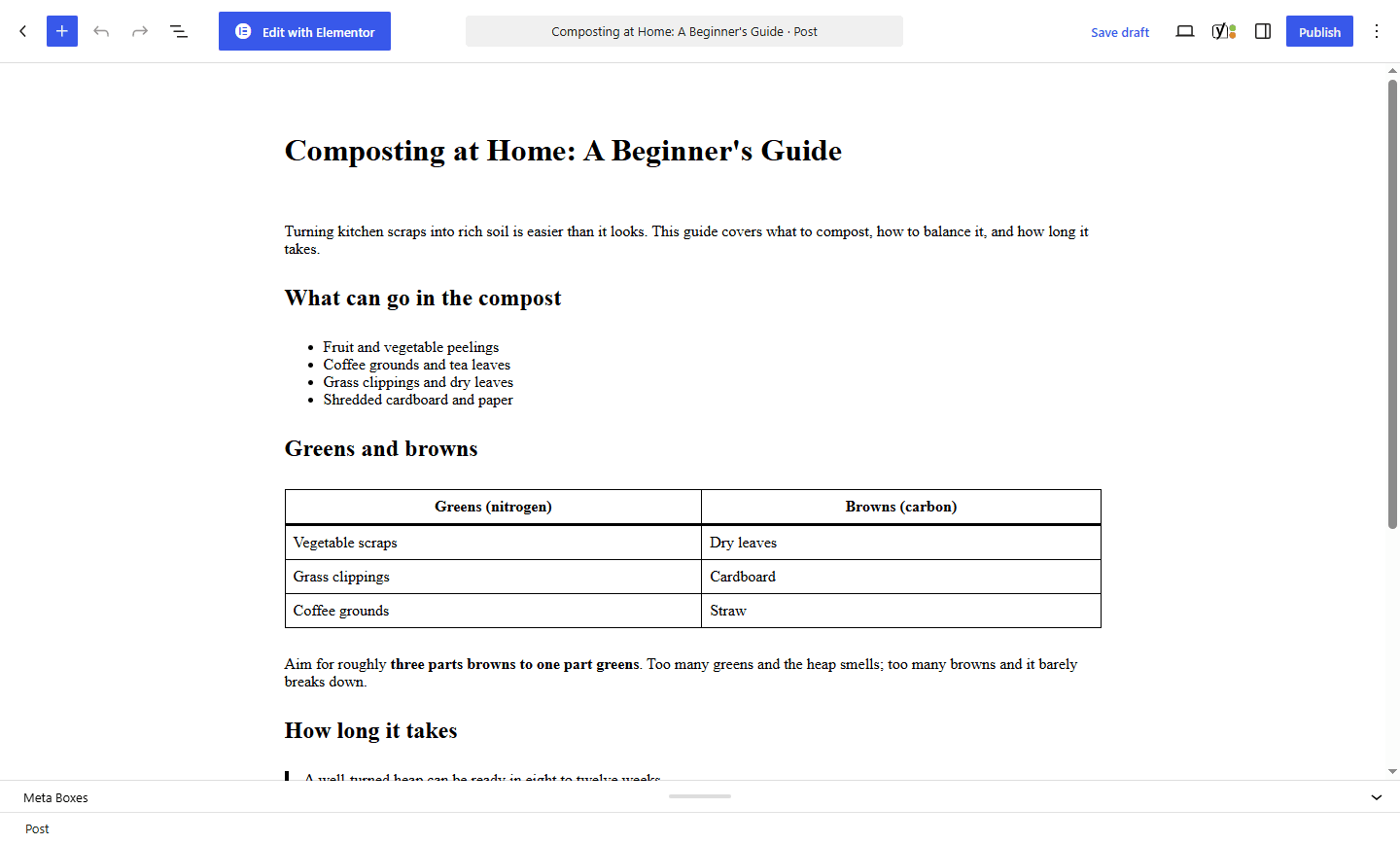
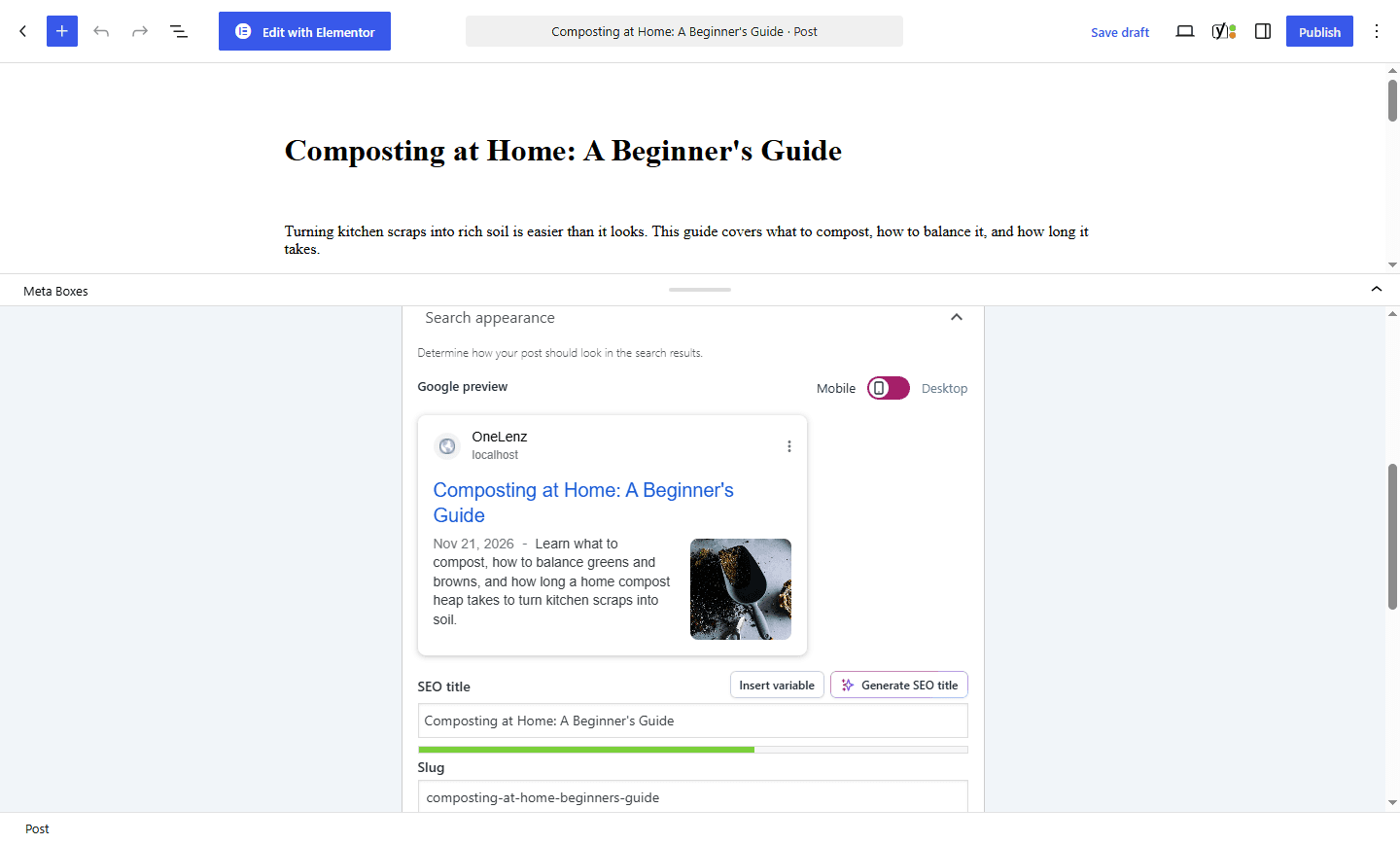
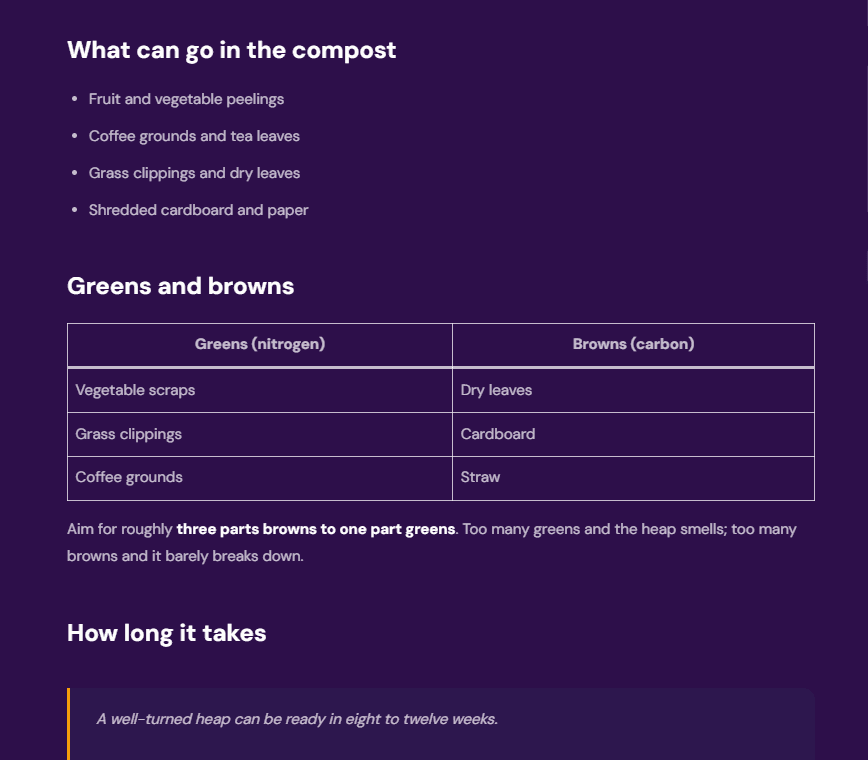
Open the edit link while logged in, read the post, change anything you like, and publish when you are happy. Every AI import is also listed in DocxToWP Pro → Activity Log, marked with the key that sent it.
Connect Claude Desktop or Cursor instead
The same connection works in both. Only the set-up differs:
- Claude Desktop takes a few lines in its config file and needs Node.js 18 or later. Step by step: Connect Claude Desktop to WordPress.
- Cursor takes a few lines in
mcp.json, then you ask in Agent mode. Step by step: Write WordPress posts in Cursor.
Each app should get its own key, so you can revoke one without touching the others.
Word documents and Google Docs too
Claude Code can read files on your computer, so it can send a Word document as well:
Read C:\Documents\annual-report.docx and import it with docxtowp_import_docx
as file_base64. Do not change the text.
Any connected app can also send a link to a Word file or a shared Google Doc. The pictures go into your Media Library, exactly as with a normal upload.
How you stay in control
- Off by default. An administrator switches it on.
- Drafts only. Claude cannot publish, schedule, edit or delete posts, or change settings, users or plugins.
- One key per app. Up to 25 keys, each shown once, each revocable in one click.
- Your roles still apply. A key acts as the WordPress user who made it.
- Limits. 60 requests a minute and 30 imports an hour per key, plus your Max File Size setting.
- A record. Every import is in the Activity Log with the key's name. No document content and no keys are stored there.
- Each key sees only its own drafts. It cannot read your other posts.
More on why this matters: How to let AI post to WordPress without giving it the keys.
If it does not connect
- Failed to connect in
claude mcp list: open the Server URL in a browser (an error message there is fine; it means the site answered) and check the connection is switched on. - A key error with the right key: some servers drop the Authorization header. Remove the server with
claude mcp remove docxtowpand add it again with--header "X-API-Key: dwpk_…". - Every message and its fix is in the AI agent documentation.
For the overview of what the DocxToWP WordPress MCP server does and does not do, see the WordPress MCP server page.
The AI agent connection is part of DocxToWP Pro, from $49/year.
Let Claude write. You publish.
Connect Claude Code, Claude Desktop or Cursor to WordPress. Posts arrive as formatted drafts with categories, tags and SEO fields, and nothing goes live until you say so.
See Pro plansFrequently asked questions
A plugin that lets AI apps such as Claude and Cursor use tools on your WordPress site, through the open Model Context Protocol (MCP). DocxToWP's has one job: turning what the AI writes into a formatted draft.
Yes. That is exactly what this is for. Claude Code, Claude Desktop and Cursor connect from your own computer, so it works with a live site and with a local one in XAMPP, Local or similar.
Not yet. Claude in the browser needs a different kind of connection that DocxToWP does not offer yet. Claude Code, Claude Desktop and Cursor work today.
No, and that is deliberate. Every post Claude sends through DocxToWP arrives as a draft. Claude cannot publish, schedule, edit or delete anything. You read the draft and press Publish.
Yes. When either plugin is active, Claude can set the SEO title, meta description and focus keyphrase. It checks which one your site uses before it writes.
Yes. Claude Code can send a .docx from your computer, and any connected app can send a link to a Word file or a shared Google Doc. Images inside the document go to your Media Library.
Yes. Where Elementor is active, Claude can ask for an Elementor layout, the same as the Elementor option on the upload screen.
You use the AI app and plan you already have; DocxToWP sells no AI credits. What each Claude or Cursor plan includes is set by Anthropic and Anysphere, so check their own pricing pages.
No. Your AI app sends it straight to your WordPress site, where the plugin converts it. The text does go through your AI provider, because the AI writes it.
Related Articles
Connect Claude Desktop to WordPress and Write Posts From a Chat
Add DocxToWP to Claude Desktop's config file, restart, and ask for a post in an ordinary chat. It arrives in WordPress as a formatted draft for you to review.
Write WordPress Posts in Cursor and Send Them as Drafts
Keep your blog posts as Markdown in a Cursor project and send them to WordPress from the Agent chat. Add DocxToWP to mcp.json once, and every post arrives as a formatted draft.
Import Word Documents With the Yoast SEO Title and Meta Description Filled In
Write the SEO title, meta description and URL slug at the top of your Word draft, and have them land in Yoast SEO or Rank Math when you import, instead of in the post. One document or a hundred.
Import your first Word document in under 60 seconds
Start free. Import a Word document without copy-pasting or rebuilding its formatting. No account, no credit card. Straight from WordPress.org.